Frequently Asked Questions
 Filter by
International Roaming is a service that allows you to do the below when you are overseas:
- Access to high-speed roaming data with local operators
- Make & receive voice calls
- Send & receive SMS/MMS
Please make sure that your plan has activated International Roaming service before you travel overseas. Kindly enable “Data Roaming” on your device’s setting upon arrival at your overseas destination to enable Internet browsing.
Making IDD calls and sending SMS have been automatically enabled.
For all new U Mobile Prepaid or Postpaid customers, international roaming services are pre-activated and you can start utilising roaming services immediately.
If you are an existing customer with more than 6 months of tenure, you can easily activate your international data roaming service through the below channels:
- Activate via the MyUMobile App
- Walk into any U Mobile Service Centre
- Contact us at 1318
For non-Malaysian citizens, RM200 deposit per line is required to activate International Roaming service.
For all new U Mobile Prepaid or Postpaid customers, international roaming services are pre-activated and you can start utilising roaming services immediately.
If you are an existing customer with more than 6 months of tenure, you can easily activate your international data roaming service through the below channels:
- Activate via the MyUMobile App
- Walk into any U Mobile Service Centre
- Contact us at 1318
The requirement remains the same as the principal/standalone postpaid subscriber as mentioned above.
No deposit is required. International roaming services are pre-activated for all new prepaid & postpaid subscribers.
Just follow the simple steps below:
Step 1: Dial “+”
Step 2: Insert the Country Code
Step 3: Key in the area/operator code followed by the mobile/fixed line number.
Eg: To send an SMS to Malaysia’s mobile number (0181234567), dial +60181234567 and press send.
Firstly, ensure that your international data roaming service is activated. Once that is done, you can manually set your phone settings by following the steps below:
Android:
Step 1: Go to “Settings”
Step 2: Select “More Networks”
Step 3: Select “Mobile Networks”
Step 4: Select “Network Operators
Step 5: Select your preferred network
Step 6: Turn on “Data Roaming”
iPhone:
Step 1: Go to “Settings”
Step 2: Select “General”
Step 3: Select “Cellular”
Step 4: Turn on “Cellular Data” & “Data Roaming”
Step 5: Select “Carrier”
Step 6: Change “Automatic” to "Off"
Step 7: Select your preferred network
The charges are based on the countries and operators you have selected. For the full list, please click here.
Yes, charges would vary for peak and off-peak hours according to our roaming partner’s charges.
U Postpaid 68, 98 & U Family 128
All incoming voice calls will be Free of Charge.
Other Postpaid Plans
Yes, you will be charged if you answer any voice calls while you are roaming. The charges will vary according to the country of originating calls.
This will depend on how your voicemail is set up.
To check your voicemail, just dial +6018 388 1311.
Yes, you will be charged for retrieving your voicemail.
For postpaid – please ensure your account has no outstanding amount after payment due date to avoid auto barring of your postpaid line when you are roaming overseas.
No, but we would like to advise you to have a minimum of RM10 and above in your credit balance to avoid any interruption when you attempt to make or answer calls.
This will depend on the network operator of each respective country.
You can contact our Customer Service centre at 1318 to suspend your line immediately to avoid any unauthorised usages.
The stability of roaming services is subject to the local operator’s network. Try moving to another area with a stronger signal and retry calling.
Due to an intermittent network issue faced by our partners in China - China Unicom, outbound calls with the “+” prefix will not be able to go through.
You can still make calls to Malaysia by using “00” as your international dialling prefix until further notice.
Please connect to Wi-Fi network available around you or enable data roaming service on your mobile and connect to our preferred partner listed. Then you can use apps that has video/voice call to make your calls using roaming data. Specifically for USA & India, please connect to our preferred partner AT&T & Reliance Jio respectively and enable data roaming to make a call using roaming data.
Roam-Onz provides you with free data for roaming in 12 popular destinations.
Australia
Bangladesh
Cambodia
Hong Kong
India
Indonesia
Laos
Philippines
Singapore
South Korea
Taiwan
Thailand
This bundle plan is available with selected postpaid rate plans.
It is free of charge.
The amount of data you get depends on the postpaid plan you subscribe to.
| Eligible Rate Plans | Roam-Onz Quota |
| P68 | 500MB/month |
| P79 | 1GB/month |
| P99 | 3GB/month |
| i90, Ultimate Device 90, U Premium | 5GB/month |
| i130, Ultimate Device 130, U Platinum | 8GB/month |
The amount of data you get depends on the postpaid plan you subscribe to.
No. Roam-Onz is a data-only service.
No. The quota is exclusively for the principal line.
Yes, you need to connect to our preferred roaming network operator when you are on data roaming at selected destinations.
You may check your quota balance via the MyUMobile AppMyUMobile App, or by dialing *118*6*1*1#
Yes, you will receive notifications when your quota usage reaches 80%, 95% and 100%.
You will be automatically subscribed to 24-hour Roaming RM15. This is a chargeable service at only RM15 per day, per destination.
Effective 18 Aug 2022, Unlimited HERO P139 is paired with FREE Roam-Onz by default. The 36 destinations covered under FREE Roam-Onz are:
- Australia
- Austria
- Bangladesh
- Brunei
- Cambodia
- Canada
- China
- Denmark
- Egypt
- France
- Hong Kong
- India
- Indonesia
- Ireland
- Italy
- Japan
- Laos
- Latvia
- Lithuania
- Myanmar
- Netherlands
- Pakistan
- Philippines
- Poland
- Russia
- Saudi Arabia
- Singapore
- South Korea
- Sri Lanka
- Sweden
- Taiwan
- Thailand
- UK
- Ukraine
- USA
- Vietnam
You can subscribe to Roam-Onz Global™ which covers 36 roaming destinations for RM30/month.
You can subscribe to Roam-Onz Global™ at RM30/month via the MyUMobile App.
Roam-Onz Global™ is a roaming data service that is available across 5 continents in over 35 destinations. Please click on Roam Onz Global™ for the complete list
It is RM30 per month. Customers who sign up for Unlimited HERO P139 before 18 August 2022 will enjoy it free for 24 months upon sign up.
Roam-Onz Global™ is a data roaming service which does not include Voice and SMS service.
The data quota is exclusively for Principal line only and is not shareable with Share 20 lines.
You may check via the MyUMobile app or by dialing *118# from your phone. You will receive SMS notifications when the quota usage reaches 80%, 95% and 100%.
You may check via the MyUMobile app or by dialing *118# from your phone. You will receive SMS notifications when the quota usage reaches 80%, 95% and 100%.
It will automatically change the subscription to 24 Hour-Roaming RM38 or 24 Hour-Roaming RM15 charges depending on your destinations.
You may turn OFF the “Data Roaming” function in your phone settings.
You do not need to unsubscribe from U Data Roam. Just turn OFF “Data Roaming” in the phone Settings before expiry of the daily pass. Please refer to the U Data Roam T&C for the exact expiry time.
You will not be able to unsubscribe from Roam-Onz Global throughout the promotion period. Just relax and enjoy Roam-Onz Global for 24 months upon sign up for free. FREE 24 months promotion period is only applicable to Unlimited HERO P139 activated before 18 August 2022.
No. It is exclusively for the P139 rate plan.
If your line is suspended for a complete month (based on bill-cycle date), then the monthly fee is not chargeable. It is only chargeable if your line is active for at least one day during the bill-cycle period.
No. There is no notification. If you do not wish to renew, please unsubscribe before the bill cycle’s end date.
Data IR allows you to use data roaming (internet services) in many networks while overseas.
International Roaming (IR) is a full roaming service which supports Voice + Data + SMS services. Data IR offers only “Data” service in selected networks.
You can use Roam-Onz, Roam-Onz Global, and U Data Roam (UDR) services in more than 60 countries. Please click here for the complete list.
No. All voice services are blocked since Data IR is only for “Data Roaming”.
No. You will not be able to send SMS since Data IR is only for “Data Roaming”. You can still receive SMS such as a welcome SMS, charge confirmation SMS, and even the One-Time PIN.
Data IR is pre-activated for selected Postpaid rate plans. There is no need for manual activation.
Yes. Data IR is included in all older Postpaid plans with Roam-Onz (P70, P78, P98 etc).
With Data IR, there is no need to manually select a network. Just leave it on “Automatic” and turn ON “Data Roaming” in your phone settings.
You will need to activate the full International Roaming (IR) service before your trip. Please click here for more info.
The full IR service will replace the Data IR service since Data IR is a subset of full IR.
The IDD service allows U Mobile customers to make voice and video calls as well as SMS to other countries. IDD video calls are subject to the availability of the destination country’s operators.
Your IDD call will be charged in Ringgit Malaysia (RM).
Your call charges will come under the “International” section in your bill, which records all the calls you made to destinations outside of Malaysia. Then you will see the name of the destination country in your bill.
No. Unless the call is answered by your recipient's voice mail or IVR, you will not be charged.
We’re constantly offering new promotions, so be sure to check our website from time to time, so you can see the latest rates. You may also see changes in IDD rates on your bill.
If you can’t find the + sign on your phone keypad, you can just dial 00 instead.
No.
Yes, you will be charged according to the international rate. Please call our customer service at 018-3881318 for further assistance.
Yes. Please visit our nearest customer service centre to suspend or deactivate this service.
Dial 00 or + followed by the country code, mobile prefix or area code, and then enter the phone number that you would like to dial. For example, to place an IDD call to Singapore, you should dial < + > < 65 > < area code > < phone number >
This service is only available for U Mobile subscribers making IDD calls in Malaysia.
Best IDD 1310 is a service that U Mobile offers to customers. Enjoy lower rates when you dial 1310 before dialling the country code, area code and phone number.
This service is free of charge, but the calls are chargeable.
1310 is a prefix that enables you to make IDD calls at lower rates.
The Best IDD 1310 rates are applicable only to voice calls. Please refer to our website for the rates, or check with our friendly customer service representative for further information.
No. This offer is only applicable for IDD calls made from Malaysia by dialling the prefix of 1310.
The charging block is 60 seconds.
Follow these steps:
Key in <1310> <Country code> <Area Code> <Mobile or fixed line number>
Tap the “dial” button
You do not need to subscribe to this service. However, for non-Malaysian citizens, there's a RM200 deposit per line that is required to activate IDD services.
This rate is applicable at any given time of the day.
U Family 128 comes with 15GB of FREE Global Roaming across more than 60 destinations
All incoming calls in over 60 destinations are also free of charge when you are subscribed to U Family 128.
Yes, the Free 15GB Global Roaming quota is shareable across all 4 lines under U Family 128.
All lines can check the roaming quota balance via the MyUMobile app.
Yes, you will receive notifications when your quota data usage reaches 80% and 100% of your quota.
You will be automatically subscribed to 24 Hour-Roaming RM38 or 24 Hour-Roaming RM15 depending on the destination that you are in.
24 Hour-Roaming RM38 or 24 Hour-Roaming RM15 is non-shareable and will be charged per roaming line.
For more details, visit https://www.u.com.my/en/personal/mobile-plans/roam-travel/roaming#other-plans
The roaming quota and validity will be refreshed upon purchase of the new add-on. Unused data from the previous add-on will be forfeited.
Data from Roam Share 2GB will be utilized first before 24 Hour-Roaming RM15 data. If data from Roam Share 2GB is finished, and 24 Hour-Roaming RM15 charges is still within validity period, data will then be drawn from 24 Hour-Roaming RM15 charges.
Below are the new Multi-Day Roaming Passes for all U Mobile Postpaid and Prepaid subs:
| Roaming Passes |
5-Day Roaming (SG/IDN/TH) | 7-Day Roaming (Multi-Country) | 30-Day Roaming (Multi-Country) | 10-Day Roaming (ASEAN) |
| Validity | 5 Days | 7 Days | 30 Days | 10 Days |
| Price | RM30 | RM60 | RM115 | RM90 |
| Countries | 3 | 16 |
In over 50 destinations
|
9 |
| Data Quota | GB High-speed Roaming Data daily, refreshed based on the Roaming Pass purchase time (Malaysia Time). Upon depretion, you can continue browsing at reduced speed up to 512kbps |
1GB High-speed Roaming Data daily, refreshed based on the Roaming Pass purchase time (Malayasia Time) Upon depletion, you can continue browsing at reduced speed up to 512kbps | ||
| Roaming Add-Ons |
2GB High-speed Data for RM10 Valid for 24 hours *Only valid for purchase with an active Roaming Pass |
- | ||
Note: The Multi-Day Roaming Passes do not cover call & SMS usage or data usage in Maritime areas (International Waters Cruise Ship)
The Multi-Day Roaming Passes can be used across the destinations listed below, according to the specific passes.
| Roaming Passes |
5-Day Roaming (SG/IDN/TH) |
7-Day Roaming (Multi-Country) |
30-Day Roaming (Multi-Country) |
10-Day Roaming (ASEAN) |
| Destinations |
Singapore, Indonesia, Thailand |
Australia, Bangladesh, China, Hong Kong, Indonesia, Macau, Singapore, South Korea, Taiwan, Thailand, Japan, Kazakhstan, New Zealand, Russia, Saudi Arabia, Vietnam |
Albania, Australia, Austria, Azerbaijan, Bangladesh, Belgium, Cambodia, Canada, China, Czech Republic, Denmark, Egypt, France, Germany, Greece, Hong Kong, Hungary, Iceland, India, Indonesia, Ireland, Italy, Japan, Kazakhstan, Laos, Latvia, Lithuania, Luxembourg, Macau, Mongolia, Netherlands, New Zealand, Oman, Pakistan, Philippines, Poland, Portugal, Romania, Russia, Singapore, South Korea, Spain, Sri Lanka, Sweden, Switzerland, Taiwan, Thailand, Turkey, UK, Ukraine, USA, Vietnam |
Brunei, Cambodia, Indonesia, Laos, Philippines, Singapore, Thailand, Timor-Leste, Vietnam |
Scenario:
If you’re traveling to Singapore and then to Indonesia within 5 days, you can purchase a 5-Day Roaming (SG/IDN/TH) pass and enjoy unlimited roaming across both destinations.
All Roaming Passes are not auto-renewable. You will need to repurchase your desired Roaming Pass via MyUMobile App if you wish to continue using roaming services.
No, the Multi-Day Roaming Passes are not activated automatically.
If you do not wish to have the 24-Hour Roaming activated automatically, we recommend you to:
- Purchase the Multi-Day Roaming Pass before leaving Malaysia; or
- Turn on data roaming only after purchasing the Multi-Day Roaming Pass (ie. Make the purchase over free wifi or UMB).
Refer to next question for more information.
You can purchase the roaming passes via MyUMobile App & UMB. Please refer to the steps below:
1. MyUMobile App (Postpaid & Prepaid Customer)
Step 1: Launch the MyUMobile App
Step 2: Select Add-Ons, and search for “Roam & Travel” tab
Step 3: Select the Roaming Pass you desire and confirm your subscription
Note: Once you’ve clicked ‘Buy Now’, the Roaming Pass will be purchased and activated immediately. The Roaming Pass is then active.
2. UMB (Prepaid Customer)
Step 1: Dial *118#, select “Roam & Travel”
Step 2: Select the Roaming Pass you desire
Step 3: Confirm your subscription
Note: UMB menu is available to access even without data connectivity. There are no charges incurred for dialling UMB overseas.
Yes, you can. We highly recommend purchasing the Multi-Day Roaming Pass while still in Malaysia to ensure a seamless roaming experience. Make sure that data roaming is turned on in your mobile device settings to enjoy roaming as soon as you land at your travel destination.
You will receive an SMS upon successful purchase and activation. You can also verify via MyUMobile App at ‘View All Usage Details’.
| Roaming Pass | Roaming Pass Validity |
|---|---|
| 5-Day Roaming (SG/IDN/TH) |
Expires 5 full days (120 hours) following the time of activation (Malaysia time). |
| 7-Day Roaming (Multi-Country) |
Expires 7 full days (168 hours) following the time of activation (Malaysia time). |
| 10-Day Roaming (ASEAN) |
Expires 10 full days (240 hours) following the time of activation (Malaysia time). |
| 30-Day Roaming (Multi-Country) |
Expires 30 full days (720 hours) following the time of activation (Malaysia time). |
You will receive a SMS reminder one day prior to your expiration date and on the actual expiration date of the Roaming Pass.
Multi-Day Roaming Passes come with a 1GB or 2GB High-speed Data Roaming quota that refreshes daily, based on the purchase time (Malaysia time). Once the daily quota is fully depleted, you can continue browsing with Unlimited Data at a throttled speed of up to 512 Kbps.
There are no additional charges for browsing at throttled speed.
With an active Roaming Pass, you can choose to purchase the Roaming Add-On for 2GB of High-speed Data at RM10, valid for 24 hours. Do note that the Roaming Add-On is not available with the 10-Day Roaming (ASEAN) Pass.
You can purchase the Roaming 2GB (RM10/24 Hours) via the following channels:
1. MyUMobile App (Postpaid & Prepaid Customer)
Step 1: Launch the MyUMobile App
Step 2: Select “Add-Ons”, and search for “Roam & Travel” tab
Step 3: Select “Roaming 2GB” and confirm your subscription
2. UMB (Prepaid Customer)
Step 1: Dial *118#, “Roam & Travel”
Step 2: Select the “Roaming 2GB” Add-On
Step 3: Confirm your subscription
Note: UMB menu is available to access even without data connectivity. There are no charges incurred for dialling UMB overseas.
Yes, you can still purchase the Roaming Passes. Upon landing at your destination, the Free Global Roaming will be activated automatically.
However, if you choose to purchase any of the Roaming Passes, the quota from the paid passes will be utilized first. Once the daily 2GB High-speed Data is exhausted, the quota from the Free 15GB Global Roaming will kick in until the next day’s refresh for the paid passes.
Yes, you can still purchase the Roaming Passes. Upon landing at your destination (Singapore / Indonesia / Thailand), the Free 500GB or 200GB Roaming will be activated automatically.
However, if you choose to purchase any of the Roaming Passes, the quota from the paid passes will be utilized first. Once the daily 2GB High-speed Data is exhausted, the quota from the Free 500GB for U Postpaid 68 & 200GB for U Postpaid Borneo 68 while roaming in Singapore, Indonesia & Thailand will kick in until the next day’s refresh for the paid passes.
For U Family 128 subscribers, these Roaming Passes will not be available. However, you can purchase the Roam Share Add-Ons once you’ve utilised the Free 15GB Global Roaming.
The credit charges for the Multi-Day Roaming Passes are based on the one you desire. For example: RM30, RM60, and RM115 for the 5-Day Roaming Pass, 7-Day Roaming Pass, and 30-Day Roaming Pass respectively.
You will need to maintain a minimum of RM10 credit balance in your account to be eligible to roam.
Yes, you can. Please take note that the first Multi-Day Roaming Pass will be replaced with the second pass upon purchase. Roaming Passes with same validity will not co-exist.
Yes, you can. However, all Multi-Day Roaming Passes will be activated upon purchase.
Scenario:
You have an active 5-Day Roaming Pass & you purchase a 7-Day Roaming Pass.
In terms of data utilization sequence, the daily 2GB High-speed Data from the 5-Day Roaming Pass will be first. Upon exhaustion, only then will the daily 2GB High-speed Data from the 7-Day Roaming Pass kick in.
Once the daily quota from both Roaming Passes is depleted, you can continue browsing with Unlimited Data at a throttled speed of up to 512 Kbps.
There are no additional charges for browsing at throttled speed.
Upon arrival at your destination, you will receive a Welcome SMS from U Mobile regarding the operator for uninterrupted roaming experience.
IOS
Go to Settings > Mobile Services >Network Selection > Manually select the indicated preferred operator
Android
Go to Settings > Network & Internet >Sim Card & Mobile Network >Select Network > Manually select the indicated preferred operator
When you receive an Interactive SMS from sender ‘28118’ offering a Roaming Pass, you can choose to activate a Multi-Day Roaming Pass by replying to the message with the specific keyword indicated (e.g.: ROAM5, ROAM7, or ROAM30). The selected Roaming Pass will be activated within 5 minutes.
The new 24-Hour Roaming Passes let you enjoy Unlimited Internet access at selected destinations when you connect to the network of our preferred roaming operator while travelling.
Below are the available 24-Hour Roaming Passes
| Roaming Passes | 24-Hour Roaming RM15 | 24-Hour Roaming RM38 |
|---|---|---|
| Validity | 24 Hours | 24 Hours |
| Price | RM15 | RM38 |
| Countries | 10 (Multi-Country) | Over 50 (Multi-Country) |
| Data Quota | 1GB High-speed Roaming Data valid for 24 hours based on the Roaming Pass purchase time (Malaysia Time). Upon depletion, you can continue browsing at reduced speed up to 512kbps. | |
The 24-Hour Roaming Passes are available in over 60 destinations, see the list below for details:
| Roaming Passes | 24-Hour Roaming RM15 | 24-Hour Roaming RM38 |
|---|---|---|
| Countries | Australia, Bangladesh, China, Hong Kong, Indonesia, Macau, Singapore, South Korea, Taiwan, Thailand | Albania, Austria, Azerbaijan, Belgium, Brunei, Bulgaria, Cambodia, Canada, Croatia, Czech Republic, Denmark, Egypt, France, Finland, Germany, Greece, Hungary, Iceland, India, Ireland, Italy, Japan, Kazakhstan, Laos, Latvia, Lithuania, Luxembourg, Mongolia, Montenegro, Nepal, Netherlands, New Zealand, Oman, Pakistan, Philippines, Poland, Portugal, Romania, Russia, Saudi Arabia, Slovakia, South Africa, Spain, Sri Lanka, Sweden, Switzerland, Timor Leste, Turkey, UAE, UK, Ukraine, USA, Vietnam |
Yes it can. The 1GB High-speed Roaming Data is valid to be used in 2 different countries within 24 hours based on the respective passes.
For example:
You landed at Singapore Changi Airport at 11am and are waiting for your flight transfer to Australia at 4pm. Upon turning on Data Roaming, the 24-Hour Roaming RM15 - Auto will be provisioned to you. You will be able to use this 24-Hour Roaming Pass, with 1GB High-speed Roaming Data, in both countries.
The 24-Hour Roaming Passes are available to all U Mobile Prepaid and Postpaid Rate Plans, except for U Mobile Postpaid Broadband plans.
Yes. As long as your U FamilyShare line(s) activate the International Roaming Service, both the U FamilyShare line(s) and the Principal line holder will be able to enjoy the Roaming Services. However, usage charges will be applied separately to each line.
For example, using 24-Hour Roaming RM15 in Singapore:
If the Principal line holder and 1 U FamilyShare line holder use Data Roaming at the same time in Singapore when they connect to StarHub, the Principal line will be charged RM15 per day and an additional RM15 per day for the U FamilyShare line’s Internet usage while roaming.
You just need to ensure that your International Roaming Service is activated before you travel overseas.
However, you MUST connect to our preferred roaming operator’s network based on the destination you are in.
You may also subscribe to a 24-Hour Roaming Passes via MyUMobile App before landing at your destination.
- Postpaid (Malaysian):
- New customer: International Roaming Service is pre-activated when you sign up for a Postpaid plan.
- Existing customer: You can activate International Roaming Service by either: visiting any U Mobile Service Centre, calling +6018-3881318, or via MyUMobile App if your tenure with U Mobile is more than 6 months.
- Postpaid (Non-Malaysian):
- New and Existing customer: International Roaming Service can be activated via U Mobile Service Centre and RM200 deposit per line will be required.
- Prepaid: International Roaming Service is pre-activated for all Prepaid subscribers.
Yes, you will receive a welcome message which mentions our preferred roaming operator’s name and network when you arrive at your destination.
You will not be able to connect to the Internet on your mobile device using your mobile data.
To continue enjoying the Internet connection, be sure to connect to U Mobile’s preferred roaming operator when you are abroad.
Your mobile device may automatically switch to another network provider if it detects a stronger signal. In this case, you may manually connect to our preferred network operator.
For the 24-Hour Roaming RM15 and 24-Hour Roaming RM15 - Auto, a flat rate of RM15 will be charged upon successful activation and will be valid for 24hrs.
For the 24-Hour Roaming RM38 and 24-Hour Roaming RM38 - Auto, a flat rate of RM38 will be charged upon successful activation and will be valid for 24hrs.
Yes, you can still purchase the Roaming Passes. Upon landing at your destination, the Free Global Roaming will be activated automatically.
However, if you choose to purchase any of the 24-Hour Roaming Passes, the quota from the paid passes will be utilised first. Once the 1GB High-speed Roaming Data is exhausted, the quota from the Free 15GB Global Roaming will kick in.
Yes, you can still purchase the Roaming Passes. Upon landing at your destination (Singapore / Indonesia / Thailand), the Free 500GB or 200GB Roaming will be activated automatically.
However, if you choose to purchase any of the 24-Hour Roaming Passes, the quota from the paid passes will be utilized first. Once the 1GB High-speed Roaming Data is exhausted, the quota from the Free 500GB for U Postpaid 68 & 200GB for U Postpaid Borneo 68 while roaming in Singapore, Indonesia & Thailand will kick in.
Yes, you can. You can also purchase the Roam Share Add-Ons once you’ve utilised the 24-Hour Roaming Passes and the Free 15GB Global Roaming. Find out more and subscribe via the MyUMobile App.
Yes, you can purchase any of the 24-Hour Roaming Passes and Prepaid Travel Passes at the same time.
When both passes are active at the same time, the data from the 24-Hour Roaming Pass will be utilised first due to its shorter validity. Upon depletion of the 1GB High-speed Roaming Data, only then will the quota from the Prepaid Travel Pass be utilised.
It is necessary to have the required amount of credit in your Prepaid account based on the destination you intend to roam in, before travelling.
For example, if you do not have RM15 credit in your Main Credit Balance account when you travel to countries where the 24-Hour Roaming is available, the Roaming Pass will not apply to you. You will not be able to subscribe to 24-Hour Roaming if you have insufficient credit in your Main Credit Balance. This is because Roaming charges can only be deducted from the Main Credit Balance even though you have sufficient credit in your CreditShare Balance.
You are advised to top up before you travel. However, you can still perform top up with your top up voucher even when you are abroad.
At the same time, you may also use our online banking channels to top up while abroad.
Roaming Data utilisation SMS will be sent to you once you have utilised 100% of your Roaming Data.
Alternatively, you can check your Roaming Pass Data usage and expiry via the MyUMobile App.
Once the 1GB High-speed Roaming Data is fully depleted, you can continue browsing with Unlimited Data at a throttled speed of up to 512 Kbps.
There are no additional charges for browsing at throttled speed.
Yes, you can restore your Internet quota and speed by buying a suitable Multi-Day Roaming Pass to enjoy more daily quota and savings or alternatively, purchase another 24-Hour Roaming Pass (24-Hour Roaming RM15 / 24-Hour Roaming RM38) via the MyUMobile App or via UMB *118#.
There is no limit to the number of passes you can buy in a day. Please take note that the first 24-Hour Roaming Pass will be replaced with the second Roaming Pass upon purchase. Roaming Passes with the same validity will not co-exist.
No, the 24-Hour Roaming Passes are only applicable to be used overseas for roaming purposes.
No, you will not be able to use Roaming Data in the countries where the 24-Hour Roaming Passes are not available.
You are advised to look for alternatives when travelling to countries that are not covered in the 24-Hour Roaming Passes.
No, you will not be able to utilise the Roaming Data allocated for the 24-Hour Roaming RM15, as your travel destination is only eligible under the 24-Hour Roaming RM38.
However, you will be auto provisioned with the 24-Hour Roaming RM38 upon arrival, as you do not have an eligible Roaming Pass.
No, refunds will not be provided for a wrongly purchased 24-Hour Roaming Pass.
You are advised to check the eligibility of destinations for the different 24-Hour Roaming Passes here before making a purchase.
International Roaming Charges are subjected to the 6% service tax effective from 1 Sept 2018.
The monthly fee for each short code will be charged either before or after the 15th of each month, depending on its activation date. For example, if the short code is activated on 10 September, the billing cycle for the short code fee will start from 1 October. If the short code is activated on 16 September, the billing cycle for the short code fee will start from 1 November.
Please email all your queries or requests to support@cpa-umobile.com.
The CPA platform provides content providers with an easy way to sell and market their own content services through operator billing.
The connection method is via HTTP or Web Service only, so VPN connectivity is not required.
As the content provider, you will need to register a short code, or use an existing short code which has already been registered on another telco.
Once your registration has been approved, you can download the technical document by accessing the portal using your assigned username and password.
Yes. The setup fee of RM2000 and short code monthly fee of RM500 already cover both SMS and MMS channels. However, for Bulk SMS, the RM2000 short code setup fee and the RM500 monthly fee per short code will be charged separately. These fees are not inclusive of Government Service Tax, which would be included in your invoice.
WAP channels are not available. Due to regulatory issues and rising customer complaints, WAP charging, including WAP push and WAP pull, would no longer be made available.
No. With the CPA Premium SMS service, U Mobile provides the content provider with a SMSC gateway connectivity. This is billed on a premium value to U Mobile subscribers. It offers you an option to send mobile content to mobile subscribers via SMS with a chargeable premium price.
On the other hand, with the Bulk SMS service, U Mobile provides a SMSC gateway connectivity to enable you to transmit mass deliveries of SMS text messages to your own customer base. You will then be billed with Bulk SMS rates for utilising the service. Bulk SMS usage is billed on a post-paid basis, and the usage is invoiced at the end of each month.
Send “Stop YTM” to 28118 to stop the service.
If you are a prepaid subscriber, you will be entitled to this service again the next time you purchase any Unlimited Mobile Internet or Mobile Broadband plan. If you are a postpaid subscriber, you will no longer be entitled to this service until the end of the promotion period.
If you are a prepaid subscriber, just purchase or auto-renew your Unlimited Mobile Internet or Mobile Broadband plan to be entitled to the Free Music Streaming promotion.
If you are a postpaid subscriber, you are entitled to the Free Music Streaming promotion if you are subscribed to an eligible plan.
No payment is required.
The promotion period starts from 11 November 2014 onwards.
The promotion period starts from 8 October 2014 onwards.
You can continue to enjoy this service with an additional payment of RM3 per month on top of any monthly data plan subscription.
There is no quota. However, the connection speed while streaming KKBOX, MY fm, ERA and HITZ will be limited to 512kbps (DL) and 256kbps (UL) all day.
Your quota from the Free Music Streaming service will be utilised first when you use KKBOX, MY fm, ERA and HITZ. Your Booster quota will not be affected.
Your data usage will be taken from your Unlimited Mobile Internet, Mobile Broadband or U Mobile Postpaid plan.
Eligible postpaid and prepaid plan subscribers will enjoy Free Data for music streaming on KKBOX, MY fm, ERA and HITZ all day, without affecting the quota of their data plans.
A confirmation SMS will be sent out once this promotion is activated. Do note that activation of this package may take up to an hour.
There is a daily quota of 500MB. Once you use up the 500MB, your speed will be throttled to 512kbps. The 500MB quota will be renewed daily.
From 2am to 10am, your YouTube and Tonton usage will be taken from the Free Streaming package.
You are entitled to this promotion if you subscribe to any of the eligible postpaid and prepaid plans below:
Prepaid: Unlimited Mobile Internet or Mobile Broadband plans.
Postpaid: U Plus, U Premium, U Platinum, UD60, UD90, UD130, U28 or iPlans.
No payment is required.
Your data usage will be taken from your Unlimited Mobile Internet, Mobile Broadband or U Mobile Postpaid plans.
Eligible postpaid and prepaid plan subscribers will enjoy Free YouTube and Tonton streaming from 2am to 10am without affecting their data.
GameOnz is a Prepaid plan that gives you:
- Unlimited Gaming Data
- High-speed Data
*Limited-time offer.
You can activate GameOnz via MyUMobile App (Only for non 5G Prepaid plan user):
Step 1: Launch the MyUMobile App
Step 2: Select “Add-Ons”
Step 3: Select “Others” then select the GameOnz Plan you desire.
There are three ways to purchase Game-Onz:
Via the MyUMobile App (available from the App Store, Google Play and App Gallery)
Via UMB: Dial *118*3*5# and choose your desired package
To use GameOnz, simply enable mobile hotspot on your mobile phone and tether your laptop or PC, then launch one of the supported games and start playing.
Any subsequent gaming will consume data from your High-speed Data quota.
You will receive an SMS notification when you have used up 80% and 100% of your data. Your connection speed will be managed once you hit your plan’s quota. Please purchase Data Boosters or a new GameOnz plan to continue to enjoy High-speed Data.
Your data usage will be consumed from your High-speed Data quota.
The call and SMS rates for GameOnz will follow your Unlimited FUNZ, Power Prepaid or New U Prepaid Rate Plans.
Your UMI20 plan will be replaced by GameOnz18. All data usage will come from your GameOnz18 plan.
Your UMI30 plan will be replaced by GameOnz18. However, your Data Booster will not be forfeited, and it will expire based on its subscription date. When you play games, your Gaming Data will be consumed first while your other data usage will be consumed from the Booster, followed by GameOnz’s High-speed Data.
Game updates and downloads will be consumed from your Gaming Data quota.
Google Play is where you get your Android apps, Google movies and more.
Carrier Billing allows you to charge your Google Play purchases to your U Mobile Postpaid bill, or deduct your Google Play purchases from your prepaid airtime credit.
Carrier Billing is available for all U Mobile Postpaid and Prepaid customers.
You only need an active U Mobile Postpaid or Prepaid account, and a valid Gmail account.
Check out these websites for more info:
Google Play Help
Google Play Refund & Returns
Google Play Payment Methods
Google Play Content Availability
Just select an item that you want to buy in Google Play, choose U Mobile billing as your payment method, confirm your purchase and you’re done! The payment method for your next purchase will follow your last payment method.
Yes. Just add a new payment method by clicking the menu button at the top left corner of Google Play and select “Account”.
For U Mobile Postpaid subscribers:
i. if you have been subscribed to U Mobile’s postpaid service for a period of less than 3 months, U Mobile has the right to limit your purchase amount to any amount that U Mobile considers appropriate; or
ii. if you have been subscribed to U Mobile’s postpaid service for more than 3 months, you may make purchases of any amount as long as:
a. your total postpaid charges (whether billed or unbilled) do not exceed your credit limit. Since the charges are not reflected on a real-time basis, we may sometimes allow you to make purchases exceeding your credit limit. If we allow you to make purchases exceeding your credit limit, you may be charged a fee which you are required to pay; and
b. your purchases do not exceed:
i. RM250.00 per day. Your daily purchase limit applies to your purchases made from 00:01 to 23:59 on the same day; and
ii. a total value of RM1,000.00 per calendar month. This monthly limit applies to your purchases made from the first day of the calendar month until the last day of that month.
If you are a U Mobile Prepaid subscriber, there is no monthly limit for your purchases. You can make purchases as long as you have enough credit balance in your prepaid account. However, you can only make purchases of up to RM300.00 per transaction.
We may change these limits from time to time.
You may do this only if this is not your first purchase paid with U Mobile. Please note that roaming charges apply.
You may request for a refund within 2 hours, which is Google’s refund policy window. Select the purchased app in Google Play and click “Refund”.
If you made your purchase more than 2 hours ago, purchased a subscription, or made a purchase that is in-app, on Google Play Movies & TV, Google Play Books or Google Play Newsstand, please refer to Google’s Refund & Return website for more details.
Yes, you will receive an SMS notification once the refund is successful.
Music-Onz is a FREE service that lets you enjoy music streaming from the most popular music apps and online radio services without using your rate plan’s assigned data quota.
The list of partners that you can stream using Music-Onz are:
CITYPlus FM
KupiKupi FM
We are also working on including more partners to provide you with more choices in the future.
No sign up is required. Eligible postpaid and prepaid customers will get Music-Onz automatically.
Music-Onz Eligible Rate Plans
Prepaid | Postpaid |
UMI 20 | U28 |
UMI 26 | P48 |
UMI 30 | P79 |
UMI 36 | U Premium |
UMI 38 | U Platinum |
UMI 50 |
|
Game-Onz 18 |
|
Game-Onz 50 |
|
Game-Onz 70 |
|
Note:
Not available for member and supplementary lines.
No, it does not. All Music-Onz streaming from our partners will be deducted from a separate data quota that is provided to you for free when you subscribe to any of the plans mentioned above.
Music-Onz service is offered for free to all eligible Prepaid and Postpaid customers. Subscription charges for individual partners may apply.
You can check via the MyUMobile app. Do update your app to the latest version to get this feature. If you do not have the MyUMobile app, you can download it from the App Store, Google Play and App Gallery.
You can check via the MyUMobile app. Do update your app to the latest version to get this feature. If you do not have the MyUMobile app, you can download it from the App Store, Google Play and App Gallery.
The FREE Unlimited Music-Onz is a limited time promo, we will be making further announcements on the promotion’s end date and what’s next for you.
As Music-Onz is a free value added service, there is no option or need to unsubscribe.
No. While you are still able to stream music for FREE from our partner apps, mobile browsers and PC browsers, Music-Onz does not cover the subscription fee for in-app purchases or premium access fees from our music partners.
No. Music-Onz is not applicable when you are roaming outside of Malaysia. Standard roaming charges may apply.
Carrier Billing allows you to charge your purchases with the selected partners to your U Mobile postpaid bill or by deducting your prepaid airtime credit. This service is available for selected video streaming service providers. For more information on each video streaming service providers, visit their official websites at:
Viu: http://www.viu.com
iQiyi: http://iq.com/
CMGO: https://cmgo.com/login
Please refer to this list for updates on our video streaming service providers.
It is available for all U Mobile’s postpaid and prepaid customers.
As long as you have an active U Mobile postpaid or prepaid account, you will be able to enjoy this service.
It is convenient! By using U Mobile Carrier Billing, you can easily pay your subscriptions through our U Mobile billing option. Enjoy watching movies, dramas and TV shows on the go anytime, anywhere on multiple devices such as smartphones, tablets and laptops.
Note: This is applicable for selected video streaming service providers.
You may refer to our step by step process by clicking here- Video Carrier Billing.
Yes, you will be able to still pay with Carrier Billing. Please refer to our respective partners’ websites for more information.
Video-Onz is a service that lets you stream video from popular video services without using your data rate plan. You can also upload video to Facebook Live without using your data plan.
Here's our list of partners that you can stream using Video-Onz:
YouTube
Facebook Live*
Viu
*Applicable for Facebook Live and videos hosted on Facebook (for both uploading and streaming) only.
Video-Onz service is offered for FREE to eligible Postpaid and Prepaid customers. The free data for video streaming promo is offered until further notice.
Note: Your video stream is optimised in standard definition's video resolution. Our Video-Onz partners will adjust the video resolution accordingly for optimum video streaming experience on your device.
You will be given a separate data quota especially for Video-Onz. All video streaming from our partners will be deducted from this Video-Onz data.
Eligible Postpaid (voice/broadband) customers get Video-Onz automatically in their plans. Prepaid customers get Video-Onz with the purchase of UMI/MB data packages.
Video-Onz Eligible Rate Plans
Prepaid | Postpaid | ||
|---|---|---|---|
Plans | Extra data for Video-Onz | Plans | Extra data for Video-Onz |
UMI 20 | 500MB | U28 | 3GB |
UMI 26 | 2.5GB | P48 | 5GB |
UMI 30 | 2.5GB | P79 | Unlimited |
UMI 36 | 7.5GB | P99 | Unlimited |
UMI 38 | 2GB | U Premium | 7GB |
UMI 50 | 10GB | U Platinum | Unlimited |
You can check via MyUMobile app or by dialing *118# from your mobile.
You can check via MyUMobile app or by dialing *118# from your mobile.
Once your Video-Onz data has been used, any further streams from our streaming partners will be deducted from your rate plan base quota.
No, Video-Onz is not applicable when you are roaming outside of Malaysia. Standard roaming charges may apply.
Video-Onz is applicable for video streaming for most of our partners’ apps, mobile browser* and a PC browser. You may refer to the table for any exceptions:
Video Service | Phone | PC/ Laptop | |
App | Browser | ||
YouTube | Yes | Yes | Yes |
Viu | Yes | Yes | No |
YouTube Gaming | Yes | Yes | Yes |
Facebook Live | Yes | Yes | Yes |
Yes, you will receive an SMS notification when your Video-Onz data usage reaches 100%.
Due to a system update, the Video-Onz opt-out feature is now unavailable.
WiFi Calling allows you to use your existing U Mobile number to make and receive calls using a WiFi connection. Your WiFi hotspot effectively becomes a U Mobile network tower. Enjoy huge savings while overseas when calling Malaysian numbers at a local call rate with no roaming surcharge.
Effective 22 January 2025, VoWiFi is available while roaming in all countries except Myanmar. Calls to Malaysian numbers while in Myanmar will be subjected to roaming surcharges.
To activate WiFi Calling, follow these steps:
Step 1: Insert U Mobile SIM into your iPhone.
Step 2: Activate the service. Text < WIFICALLING ON > via SMS to 28118.
Step 3: Enable WiFi Calling. Select Settings > Phone > Wi-Fi Calling > toggle to ON.
Step 4: Connect to a WiFi network.
Step 5: If WiFi Calling is activated, you will see “U Mobile WiFi”. All calls will then be made using WiFi Calling.
Most devices and phones can support WiFi Calling. Kindly check with the device or phone manufacturer for compatibility.
Yes, it does. You will need to update to the latest iOS firmware and install the latest “carrier bundle”. To install the bundle, go to Settings > General > About > Install.
All U Mobile subscribers on postpaid and prepaid plans are eligible for WiFi Calling, as long as your rate plan supports “voice call”. It is not available for “data only” plans such as Postpaid MB.
All you need is a private or public WiFi network that is connected to the Internet. However, the recommended wireless LAN is either the 802.11n or 802.11ac standards as they provide a better data quality connection.
Yes, a valid and active U Mobile SIM card is required. If your line is barred, suspended or terminated, you will not be able to make a call. If you have a dual-SIM phone, please insert your U Mobile SIM into Slot 1.
You can retry setting up WiFi Calling again. If it still doesn’t work, try out these steps instead:
Step 1: Connect to a different WiFi network with a stronger signal.
Step 2: Turn the WiFi Calling OFF and ON again
Step 3: Restart your phone
Note: Some corporate networks may block WiFi Calls. If this continues, call your network administrator for assistance.
There are a few possible reasons:
WiFi Calling requires an adequate Wi-Fi signal strength before initiating the automatic connection to WiFi Calling. Move to an area where the signal’s connection is stronger.
If the WiFi network has a captive portal (Eg. Starbucks which requires log in), you may have to launch your browser and sign in to the network with the provided username/password.
- For public WiFi networks, the provider may have policies in place to block WiFi Calling service.
You do not need to register for IDD or IR service in order for you to use the WiFi Calling service when abroad to call back to Malaysia. However, if you need to make any outgoing IDD calls, you will need to enable IDD services.
To make a call abroad without using the WiFi Calling service, you will need to enable the IR service as well.
No, you will not be charged for incoming calls while using WiFi Calling abroad.
Effective 22 January 2025, VoWiFi is available while roaming in all countries except Myanmar. Calls to Malaysian numbers while in Myanmar will be subjected to roaming surcharges.
Yes, your WiFi calls will be disconnected if you move out of the WiFi coverage area. You will then need to make another call when you are in a WiFi coverage area again.
Yes, you can make calls to any number through U Mobile WiFi Calling as per usual.
Yes, you can access the *118# menu when you are on WiFi Calling. But if you have any issue accessing the menu, please turn off the WiFi Calling and try again.
Yes, you can send an SMS even though you are connected to WiFi Calling. However, the SMS will be sent through your mobile network instead of the connected WiFi network.
We are working to enable SMS to be sent over WiFi networks.
Emergency services number 112 and 999 are routed through your normal mobile network service. If you turn on WiFi Calling and cellular service isn't available, the emergency call will use WiFi Calling to route you to a Malaysian emergency service number.
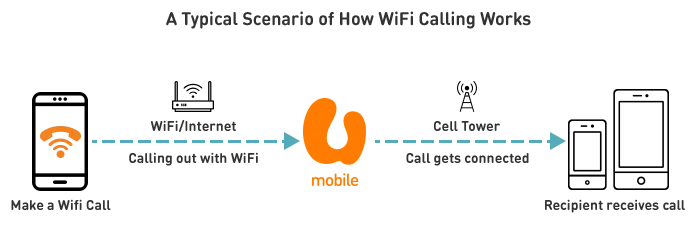
When your phone is connected to a WiFi hotspot, the call you make will be sent to the U Mobile network via the internet. From here, U Mobile will then connect your call to the recipient.
App-Onz is a FREE service that lets you stream from the most popular social network channels without using your rate plan data. The partners that you can stream using App-Onz are:
Facebook
Instagram
No, App-Onz is FREE for eligible prepaid and postpaid customers at a limited time offer. Subscription charges for individual partners may apply.
Eligible Postpaid customers (voice/broadband) will automatically enjoy App-Onz for FREE.
App-Onz Eligible Rate Plans
Prepaid | Postpaid |
UMI 20 | U28 |
UMI 26 | P48 |
UMI 30 | P79 |
UMI 36 | U Premium |
UMI 38 | U Platinum |
UMI 50 |
|
| Game-Onz 18 | |
| Game-Onz 50 | |
| Game-Onz 70 |
Note:
Not available for member and supplementary lines
No. App-Onz provides you with additional data for FREE to stream Facebook and Instagram. Standard data consumption may apply for any in-app purchase, third party apps and links out of App-Onz’s partners.
You can download or update the latest version of MyUMobile App from App Store or Google Play to monitor your account and check data usage.
You can download or update the latest version of MyUMobile App from App Store or Google Play to monitor your account and check data usage.
No subscription is required. App-Onz is absolutely FREE for eligible prepaid and postpaid customers.
No. App-Onz data is only available for eligible Postpaid principal plans.
No. App-Onz is not applicable when you are roaming outside of Malaysia. Standard roaming charges may apply.
WiFi Calling allows you to use your existing U Mobile number to make and receive calls using a WiFi connection. Your WiFi hotspot effectively becomes a U Mobile network tower. Enjoy huge savings while overseas when calling Malaysian numbers at a local call rate with no roaming surcharge.
Effective 22 January 2025, VoWiFi is available while roaming in all countries except Myanmar. Calls to Malaysian numbers while in Myanmar will be subjected to roaming surcharges.
This depends on the phone manufacturer and policy. Some phone models may not be able to support WiFi Calling when used with a Malaysian SIM card.
All U Mobile subscribers on postpaid and prepaid plans are eligible for WiFi Calling, as long as your rate plan supports “voice call”. It is not available for “data only” plans such as Postpaid MB.
All you need is a private or public WiFi network that is connected to the Internet. However, the recommended wireless LAN is either the 802.11n or 802.11ac standards as they provide a better data quality connection.
Yes, a valid and active U Mobile SIM card is required. If your line is barred, suspended or terminated, you will not be able to make a call. If you have a dual-SIM phone, please insert your U Mobile SIM into Slot 1.
You can retry setting up WiFi Calling again. If it still doesn’t work, try out these steps instead:
Step 1: Connect to a different WiFi network with a stronger signal.
Step 2: Turn the WiFi Calling OFF and ON again
Step 3: Restart your phone
Note: Some corporate networks may block WiFi Calls. If this continues, call your network administrator for assistance.
There are a few possible reasons:
WiFi Calling requires an adequate Wi-Fi signal strength before initiating the automatic connection to WiFi Calling. Move to an area where the signal’s connection is stronger.
If the WiFi network has a captive portal (Eg. Starbucks which requires log in), you may have to launch your browser and sign in to the network with the provided username/password.
- For public WiFi networks, the provider may have policies in place to block WiFi Calling service.
When your phone is connected to a WiFi hotspot, the call you make will be sent to the U Mobile network via the internet. From here, U Mobile will then connect your call to the recipient.
VoLTE stands for “Voice over LTE”.
The benefits of VoLTE include:
- Crystal clear voice quality
- Faster call setup
- Both “data” and “voice” usage are on the LTE network (Internet download continues at LTE speed at all times).
It is available to all U Mobile Postpaid and Prepaid customers.
Check if your device is compatible HERE.
There are no additional charges for VoLTE. The normal call tariffs for your rate plan may still apply.
No. VoLTE is a voice service, hence it will not consume your data quota.
You can use it when you are in U Mobile LTE coverage areas.
No. The service is automatically activated on our network.
If this happens, please SMS < WIFICALLING ON > to 28118 to activate the service.
Carrier Billing allows you to choose and purchase any content or application from iTunes® , Apple Music® or App Store® with your Apple device using your U Mobile Postpaid or Prepaid account.
It is available for all U Mobile Postpaid and Prepaid customers.
You will only need an active U Mobile Postpaid or Prepaid account and a valid AppleID account.
For more information, you can check out the website below:
You may refer to the steps below to start paying using Carrier Billing:
Open the iTunes Store or App Store app.
Scroll down to the bottom of the screen and tap on your Apple ID.
Tap on the View Apple ID and sign in.
Select > Payment Information.
Under the list of payment options, select > Mobile Phone.
If the phone you are using is the one connected to the carrier plan that you want to bill to, select > Use This Mobile Number and continue next.
If you do not see "Use This Mobile Number" or you would like to use a different number, tap "Use a Different Mobile Number," then continue with the steps in the next section. If you are not using iOS 8.4 or later, you will need to manually enter your mobile phone number.
Apple will use the mobile number of the iPhone you are on to check with your carrier and for phone billing confirmation. When this happens you might see a screen that says “Verifying”.
Yes, you can. Refer to the steps below to make payments with Carrier Billing:
Tap Settings > [your name] > Payment & Shipping. You might need to enter your Apple ID password.
Select your current payment method. If you are using Family Sharing, only your family organiser can update the payment information.
Enter your new payment information.
Tap > Save.
If you would like to remove your payment information or if you are using iOS 10.2 and below, refer to the steps below:
Tap Settings > iTunes & App Store.
Tap > Payment Information.
Then change or remove your information. To remove the payment method, select > None. Get help if you don't see “None” or can't select it.
Tap > Done.
For postpaid account:
i. If you have subscribed to U Mobile’s Postpaid service for less than 3 months from the time you have purchases any content, U Mobile has the right to limit your purchases to any amount deemed fit by U Mobile; or
ii. For other postpaid subscribers, you may make purchases provided that:
- Your total postpaid charges (billed or unbilled) do not exceed your credit limit. Since the charges are not reflected on a real-time basis, we may allow you to make purchases exceeding your credit limit. If we allow you to make purchases exceeding your credit limit, you are required to pay the charges incurred.
- Your purchases do not exceed:
- RM250.00 per day. The daily purchase limit refers to your purchases made from 00:01 to 23:59 on the same day; and
- The cumulative value of RM1,000.00 per calendar month. This monthly limit refers to your purchases from the first day of the calendar month until the last day of that month.
For prepaid account:
There is no monthly limit for your purchases. You will be able to make purchases as long as you have a sufficient credit balance in your prepaid account. However, you can only purchase up to RM300.00 per transaction.
Note: We may occasionally change these amount limits.
You may only do so if this is not your first purchase paid with U Mobile. Roaming charges may apply as well.
U Mobile offers its OKU customers a lifetime monthly rebate of up to RM10 on the access fee of selected Postpaid Plans. If you sign up in the middle of a billing cycle and your prorated access fee comes up to less than RM10 for that month, you will be able to enjoy the rebate at a full amount. Any excess balance from the monthly rebate will not be carried over to the next month.
Below are the eligibility requirements for this rebate:
Malaysians who are 18 years old and above.
Holds an OKU card issued by Jabatan Kebajikan Malaysia (JKM).
New and existing U Mobile customers.
An original Malaysian identity card.
An original OKU card issued by Jabatan Kebajikan Malaysia (JKM).
Registration for OKU Rebate is available at selected U Mobile stores only.
The entitled plans are U Postpaid 38, U Postpaid Borneo 38, U Postpaid 68, U Postpaid Borneo 68 and U Postpaid 98. Device bundles are not included in this offer.
Each OKU customer is entitled to enjoy the OKU lifetime rebate on a maximum of 2 principal lines.
No. The OKU rebate is only applicable for principal lines.
Yes, as long as your new plan is on the offer list – U Postpaid™ 38, U Postpaid™ 68 and U Postpaid™ 98.
Yes. Existing U Mobile customers can visit selected U Mobile stores to sign up for any Postpaid plan from the offer list. You will be required to produce your original NRIC and the original OKU card issued by JKM.
Yes, as long as you port-in to any of the plans in the offer list for OKU Lifetime Rebate.
The rebate will be forfeited.
One customer is entitled to one rebate at a time. Once you get the OKU lifetime rebate, the other rebate will automatically be forfeited.
No. Third party registration is not allowed.
eSIM is an embedded SIM that is built into a tiny chip within the device which allows it to download and install U Mobile’s profile. With eSIM, you can make calls, send SMS, and use data seamlessly—just like with a physical SIM, but with added convenience and flexibility.
All new and existing U Mobile Postpaid and Prepaid customers are eligible for U Mobile eSIM.
- New U Mobile customers (Postpaid & Prepaid):
- No charges for eSIM activation upon registration. - eSIM replacements:
- A one-time fee of RM10.60 (inclusive of 6% SST) applies. - Re-downloading eSIM QR (same device):
- Starting from 3 April 2025, customers are entitled to 10 free re-downloads of the eSIM QR code on the same device.
- Any additional re-downloads after the 10th attempt will incur a RM10.60 charge (inclusive of SST). - Downloading to a different device:
- Downloading your eSIM to a different device requires a new eSIM QR code and will be charged RM10.60 (inclusive of SST). - eSIM Transfer (for Samsung & Apple devices):
- eSIM transfer to a new devices for both (eSIM to eSIM) & (Physical to eSIM) will be charge RM10.60 (inclusive of SST).
U Mobile eSIM is currently supported on a wide range of devices including Apple, Samsung, OPPO, Huawei and Google. View the most up-to-date list of supported devices here.
Note: We're continuously expanding our list of supported devices. Please visit the official U Mobile website for the latest updates.
If you're currently using a physical SIM, you can request a U Mobile eSIM through either of the following channels:
- Visit a U Mobile Store:
- Walk in to any U Mobile Store to request for an eSIM.
(Note: eSIM services are currently unavailable at stores operated by authorised partners or dealers. This will be enabled soon—please refer to the U Mobile website for updates.) - Use the MyUMobile AppMyUMobile App
- Conveniently request your eSIM directly through the app without needing to visit a store.
You can request for an eSIM via U Mobile Stores or the MyUMobile AppMyUMobile App:
U Mobile Stores:
Step 1: Find your nearest U Mobile store here.
Step 2: Choose your preferred Postpaid or Prepaid plan.
Step 3: Submit a valid ID for verification and make payment at the counter.
Step 4: Once payment is confirmed, your eSIM QR code will be sent to your registered email.
Via MyUMobile App:
Step 1: Download or log in to the MyUMobile AppMyUMobile App.
Step 2: Go to Settings and select “Request eSIM”.
Step 3: Complete the identity verification and proceed with the payment.
Step 4: Once payment is successful, your eSIM QR code will be available in the app or sent to your email.
- U Mobile QR-less eSIM (eSIM which can be manually installed without QR Code) is only available upon the purchase of a device bundle from U Mobile Service Centre or via MyUM app.
- Once eSIM has been downloaded to a device, changing eSIM to a different device will require a eSIM replacement. Please note that standard charges will apply for the replacement
Before starting, make sure your device is connected to the internet throughout the activation process.
For iPhone users:
Step 1 : Go to Settings and tap > Mobile Service.
Step 2 : Tap > Add eSIM and select > Use QR Code.
Step 3 : Scan the unique QR Code sent to your registered email.
Step 4 : Install your eSIM profile and you're all set.
Your iPhone must also be updated to iOS 12.1.1 and above. For more information, refer to the manufacturer’s website: https://support.apple.com/en-my/HT209044
For Android users:
Step 1 : Go to Settings and tap > Connections.
Step 2 : Tap > Cellular or Mobile Network
Step 3 : Select > Add Mobile Plan.
Step 4 : Choose > Add Using QR Code and Scan the unique QR Code sent to your registered email.
Step 5 : Once the plan is detected, tap > Add to install
Step 6 : Tap > OK to activate the plan
For more information, refer to the manufacturer’s website: https://www.samsung.com/my/support/mobile-devices/using-your-galaxy-smartphones-with-esim/
After you request an eSIM, a unique QR code will be sent directly to your registered email address. Simply scan the QR code and follow the activation steps on your device to complete the setup.
- Make sure your device is connected to the internet or WiFi throughout the activation process.
- For iPhone users, ensure your device is updated to iOS 12.1.1 or later.
- If the activation fails, try scanning the QR code again from your Activation Kit email.
- Alternatively, you can submit a new eSIM request via the MyUMobile AppMyUMobile App.
If the issue persists, please:
- Visit any U Mobile Store for in-person assistance, or
- Contact our Customer Care Center to receive an Activation Code for manual setup.
Yes, you can transfer your eSIM profile to a new device by following these steps:
For Samsung to Samsung & For iPhone to iPhone:
Follow these steps:
Step 1 : On the new iPhone: Settings → Mobile Service → Set Up Mobile Service.
Step 2: Select your phone number → tap Transfer.
Step 3: Old iPhone will prompt → tap Transfer.
Step 4 : Follow instructions on websheet
Step 6 : Wait for activation to complete.
On Current Device:
Step 1: Open the MyUMobile AppMyUMobile App on your current device.
Step 2: Go to the 'Settings' section.
Step 3: Select 'Request eSIM'.
Step 4: Follow the prompts to generate a new eSIM QR Code.
On New device:
Step 1: Go to 'Settings' on your new device.
Step 2: Look for the option to add an eSIM.
Step 3: Scan the new eSIM QR Code using your new device's camera.
Note: You can also walk in to the nearest U Mobile Store to request for an eSIM.
Please ensure you have a stable Wi-Fi connection before starting the process as you will lose cellular data connection momentarily while transferring the eSIM profile. If you encounter any issues or have further questions, feel free contact our customer support for assistance.
Samsung to Samsung eSIM transfer is available via selected devices. View the most up-to-date list of supported devices here.
Apple to Apple eSIM transfer, you would need to ensure you are on the latest version of iOS version.
Switching your eSIM to a different device requires generating a new QR code, similar to an eSIM replacement. You can request this via the MyUMobile AppMyUMobile App or at a U Mobile Store. In this case, you may also consider using a physical SIM card for more convenient device swapping.
If your eSIM profile has been removed or your device reset, you can re-download the eSIM profle into your existing phone. You will need a new eSIM profile if you have re-downloaded for than 10 times.
You can:
- Visit the nearest U Mobile Store to request an eSIM replacement (standard charges apply), or
- Use the MyUMobile App to request a new eSIM and download it again on the same device.
Please call our Contact Centre Hotline at 018-388 1318 to immediately report your lost or stolen device. Your mobile line will be temporarily barred to prevent any unauthorized usage.
Alternatively, you can visit any U Mobile Store to report the loss and request an eSIM replacement. Please note that standard charges will apply for the replacement.
Starting from the 28th of November 2019, you can self-register for Auto Debit by logging on to the MyUMobile App. Once you have logged in, click on ‘Auto Debit’ from the menu. From there on, simply follow the instructions on the page to register for Auto Debit.
Starting from the 28th of November 2019, you can self-register for Auto Debit by logging on to the MyUMobile App. Once you have logged in, click on ‘Auto Debit’ from the menu. From there on, simply follow the instructions on the page to register for Auto Debit.
You will need to self-register for Auto Debit as it is part of the 3D-Secure registration method. The 3D-secure is a security protocol that helps prevent any credit and debit card transaction frauds online. Only the card holder can perform verification during registration.
You will need to check with your bank. An SMS would have been sent to your main line.
If you have already subscribed to Auto Debit, you can find your card information and Auto Debit status under the View Auto Debit Subscription page on the MyUMobile App.
If you have already subscribed to Auto Debit, you can find your card information and Auto Debit status under the View Auto Debit Subscription page on the MyUMobile App.
Yes. Once you have successfully registered, you will receive an SMS confirmation.
It is instantly activated upon successful registration.
No, please do not share your credit card number or any other card information over the phone. You can check your Auto Debit subscription (which includes your credit card information) by yourself by logging into the MyUMobile App from 9th December 2019 onwards.
No, please do not share your credit card number or any other card information over the phone. You can check your Auto Debit subscription (which includes your credit card information) by yourself by logging into the MyUMobile App from 9th December 2019 onwards.
Yes, you are allowed to. However, the registered cardholder will need to personally complete the 3D Secure One Time Pin (OTP) verification. During Auto Debit self-registration, the card issuing bank will send an OTP to the card holder’s registered mobile number via SMS. You will need to obtain the OTP number from the cardholder to complete the Auto Debit self registration.
No. The cardholder must check and update the Auto Debit details accordingly.
No. The Auto Debit service will be automatically cancelled 3 months after termination of your postpaid account.
Not to worry, your Auto Debit service will be automatically cancelled 3 months after you have terminated your account.
No, it is free of charge.
To change your credit card number, please login to the MyUMobile App and select ‘Auto Debit' under 'Bills and Payment' on the menu. Then, you will be directed to the ‘Auto Debit Subscription’ page.
To change your credit card number, please login to the MyUMobile App and select ‘Auto Debit' under 'Bills and Payment' on the menu. Then, you will be directed to the ‘Auto Debit Subscription’ page.
To unsubscribe from the Auto Debit service, please login to the MyUMobile App and click ‘Auto Debit’ on the menu. Then, you will be directed to the ‘View Auto Debit Subscription’ page. From there on, kindly click on the ‘Unsubscribe’ link at the bottom of the page.
To unsubscribe from the Auto Debit service, please login to the MyUMobile App and click ‘Auto Debit’ on the menu. Then, you will be directed to the ‘View Auto Debit Subscription’ page. From there on, kindly click on the ‘Unsubscribe’ link at the bottom of the page.
You can find the terms and conditions at www.u.com.my/tnc/1393.
Yes. An automated SMS will be sent to the Principal Number registered with U Mobile.
Check your Auto Debit subscription by logging into the MyUMobile App. Do ensure that your details are accurate. You can also re-update your card number again or call the bank for assistance.
Check your Auto Debit subscription by logging into the MyUMobile App. Do ensure that your details are accurate. You can also re-update your card number again or call the bank for assistance.
It is a delivery service for online orders that you have made on the U Mobile website within 24 hours.
For Standard Delivery, we will normally deliver your order within 3-5 working days.
Just visit the U Mobile website, click on ‘Buy Now’ at the top of the page and choose ‘Express’. Then place your order at the page displayed.
Unfortunately you cannot switch to Express Delivery once you have completed your purchase with Standard Delivery.
We may charge a minimal delivery fee for this service. The applicable fee will be shown in the payment breakdown when you make your order.
No, only Device + Plan orders are available.
Unfortunately, Express Delivery is not available for Switch to U customers.
Yes. For Express Delivery, payment is collected upon delivery.
Please pay with cash, credit card or online banking transfer to the account provided by our authorised U Mobile representative during delivery. A temporary receipt will be issued upon payment and the official receipt will be emailed to you within 2 hours.
You will be able to choose the new U Mobile number when you are contacted by our authorised U Mobile representative.
You should receive an SMS from us within 30 minutes after your order is received. If your order is made after 6:00pm, you will receive an SMS by 11:00am the next day.
There is a link in the SMS that is sent to you once your order is confirmed. Click on the link to check the status of your order.
Our friendly authorised U Mobile representative will deliver your order to you.
Once your order is confirmed, our authorised U Mobile representative will call you to make the delivery arrangement.
No, only the recipient indicated in the confirmed order can receive the order. You will need to provide your identification notification when the delivery is made for plan registration.
Our authorised U Mobile representative will contact you for a second delivery arrangement. If the delivery fails again, you are required to contact the authorised U Mobile representative for self-collection.
Voice over WiFi (VoWiFi) allows users to receive and make calls over a WiFi network with a U Mobile mobile line when the mobile signal is limited or absent. It is a simple direct dial, as long as the users has a compatible phone and enabled VoWiFi on their phone.
VoLTE relies on a 4G LTE network. It offers superior voice quality (high-definition (HD) voice calls) where users can still enjoy high-speed mobile data connectivity while simultaneously on a call.
Android phones:
Go to Settings > Mobile Network > Mobile Data> Wifi Calling > Enable WiFi Calling/VoWiFi
iOS phones:
Go to Settings > Mobile Data> Data plans > Wifi Calling > Enable WiFi Calling
Yes, you can still perform this even when VoWiFi is disabled. However, some activities will still rely on other network service signals such as mobile networks or VoLTE services.
No it won’t. VoWiFi calls will not utilize any data quota that has been allocated to your mobile plan. However, it will utilize the data quota from the WiFi data allocation.
There is no additional charge to use VoWiFi.
Yes, you are able to make a video call with VoWiFi if your device supports video calls.
Effective 22 January 2025, VoWiFi is available while roaming in all countries except Myanmar. Calls to Malaysian numbers while in Myanmar will be subjected to roaming surcharges.
NordVPN is a trusted VPN service used by over 14 million people worldwide. It encrypts your internet connection, keeps your IP address private, and helps you browse safely on any network - including public Wi-Fi.
NOJU is NordVPN’s official distributor in Malaysia. We make it easy to subscribe to NordVPN directly through your mobile account - no credit card needed.
Carrier billing lets you pay for your NordVPN subscription through your mobile account. The weekly charge is added to your postpaid bill or deducted from your prepaid balance. Quick, easy, and no bank details required.
NordVPN is RM 6.25 per week, all taxes included. No hidden fees.
Yes - your subscription renews every 7 days. It continues until you cancel, so you never lose access unexpectedly.
Cancel anytime - no questions asked, no lock-in period:
• Email: support@noju.io
• Portal: noju.io/support
Your access stays active until the end of the current weekly period. After that, no further charges apply.
The current week’s charge isn’t refundable once billed. But if you think there’s been a mistake, just email us at support@noju.io within 14 days and we’ll sort it out.
After subscribing, you’ll get login details or an activation link by SMS or email. Download the NordVPN app from the App Store or Google Play, log in, and you’re protected.
Up to 10 devices at the same time - phones, tablets, laptops, and more.
We’re here for anything - billing questions, cancellations, or technical help:
• Email: support@noju.io
• Portal: noju.io/support
This page is run by NOJU, NordVPN’s official distributor for Malaysia. All billing and support goes through us. For NordVPN’s own platform, visit nordvpn.com.